
I Like Big Fields and I Cannot Lie (But CRMA Does Not)
You can create very large fields in Salesforce. For example, the default size of a field with either the data type “Text Area (Long)” or Text Area (Rich) is 32,768 characters, and it can be as large as 131,027 characters.

There’s a problem though; the default Connector for CRMA does NOT like fields that are larger than 32,000 characters. For example, here I’ve created a Text Area (Long) field with a length of 32,678 characters on the User object. I’ve given it the helpful name “Text Field with Default Length of 32768.” When I try to add this new field to the User object on the Connector, I get a warning.
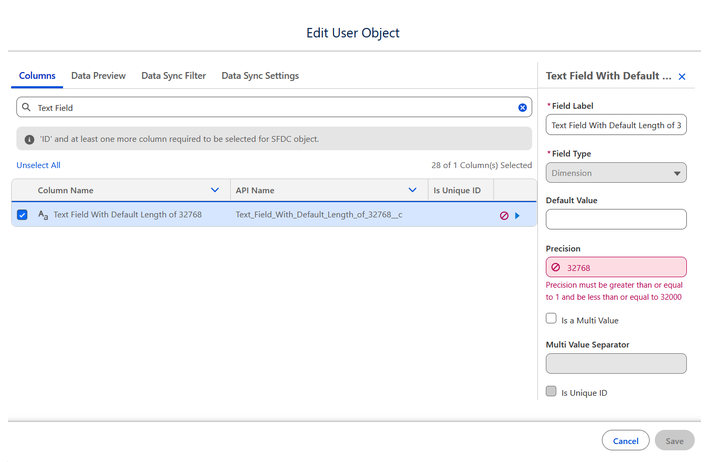
For those who have trouble reading the screenshot font, the Precision field says 32768, but the red text underneath it says “Precision must be greater than or equal to 1 and be less than or equal to 32000.” And you can’t save the field while this error exists.
Now, when you’re adding this field manually, you can just flip the precision down to 32,000 and accept that you’re going to lose the final 768 characters. You can click Save, and all is well with the world.
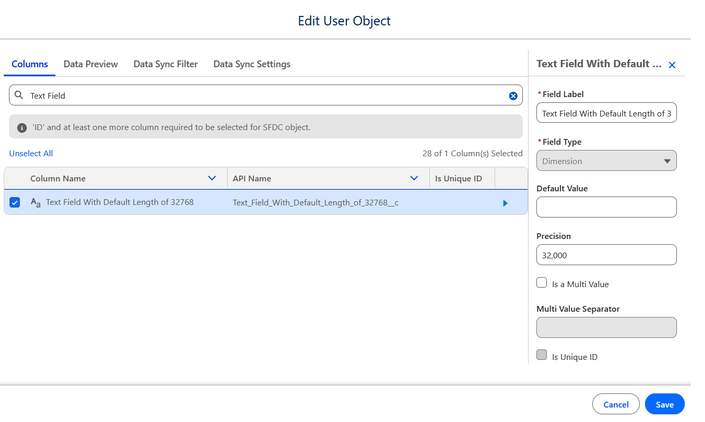
So why do we have a blog post on this rare edge case with an easy fix? Because sometimes, someone edits the length of an existing field that is already used in a Connector, and then the easy fix doesn’t work. Let’s demonstrate.
Here, I’ve created a Text Area (Long) field on the User object with a length of 31,000 characters. I can add this field to the Connector without any problems.
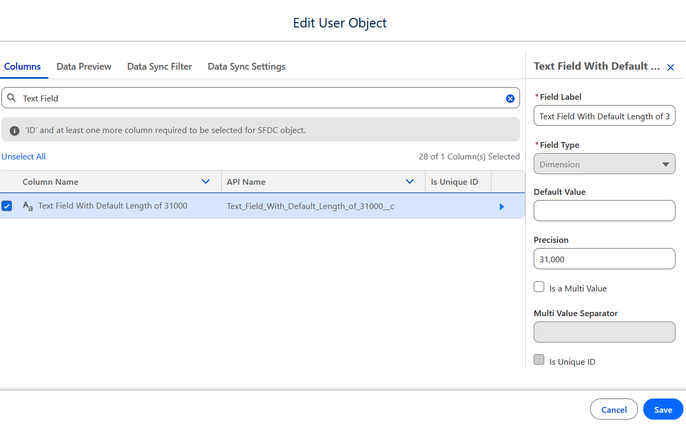
Now some other Salesforce Admin named Steve, goes in and tweaks the character length of this field to be longer than 32,000 characters. Steve doesn’t realize this field is already used in CRM Analytics. We mostly see this when field updates are being shifted from one Salesforce system to another, for example from a dev environment to a UAT environment. Now you’ll get the warning on the field, but you can’t edit the Precision AND you can’t Save the changes or remove the field.
There’s a workaround, but it requires you to use a Dataflow. Don’t worry, you’re not going to run the Dataflow or even permanently edit it. Let’s open it up. Here, I’m going to use the Default Salesflow Dataflow, which conveniently includes the User object at the very beginning of the Dataflow in the node Extract_User.
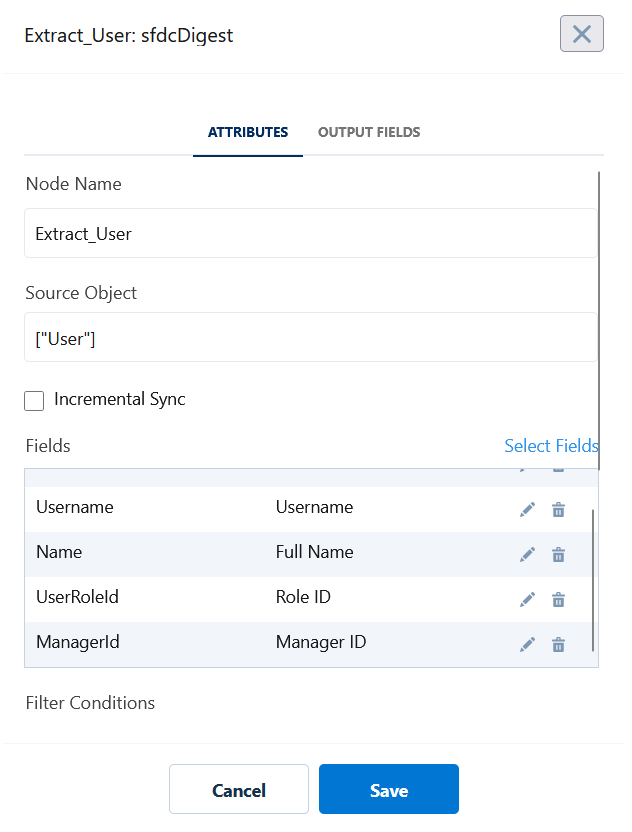
I bet you didn’t think you’d run into a Dataflow on this blog, did you?
I click Select fields and select Text_Fields_With_Default_Length_31000 which now has a length of 33000. Not only did resizing it screw up CRMA, it also screwed up the admittedly terrible name. Don’t put field characteristics in the field name at home; I am a professional!
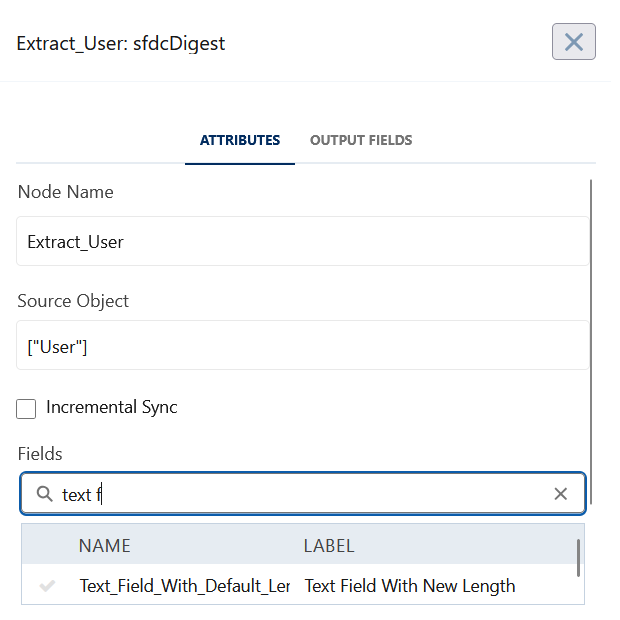
Select it. Then Update Dataflow. If we return to the Connector page, we’ll see that the Precision for our field is now 32000! The Dataflow sees the precision issue in the Connector and automatically corrects it.
Now we can go back into our dataflow and remove the field. Update it again. Our field remains in the Connector with the correct Precision and the dataflow is unchanged.
Another similar edge case is that the CRMA connector doesn’t always recognize multi-select fields as multi-values. Once again you can fire up the metadata editor via the dataflow to correct this.
You aren’t likely to run into either of these problems very often, but when they occur it’s good to have this work around in your back pocket, just in case. Or you can rely on the experience of a great consulting partner like Kyni Solutions!
